We've recently updated our billing settings to streamline your workflow and give you greater control over invoice creation. This guide will help you configure your billing preferences to match your practice patterns and ensure accurate claim submission.
Accessing Your Billing Settings
Access your billing settings by clicking the gear icon in the top right-hand corner when creating an invoice.
Here you can adjust:
- General settings and default preferences
- Billing forms and templates
- Favourites for quick access to commonly used billing code combinations
- Address book management
- Premium code scheduling (automatically applies codes to invoices based on time and date criteria)
General Settings
Set your default billing parameters to simplify data entry and reduce errors. You can still adjust these defaults on each invoice.
💡Tip: Choose the settings you use most often, they can always be changed as needed.💡
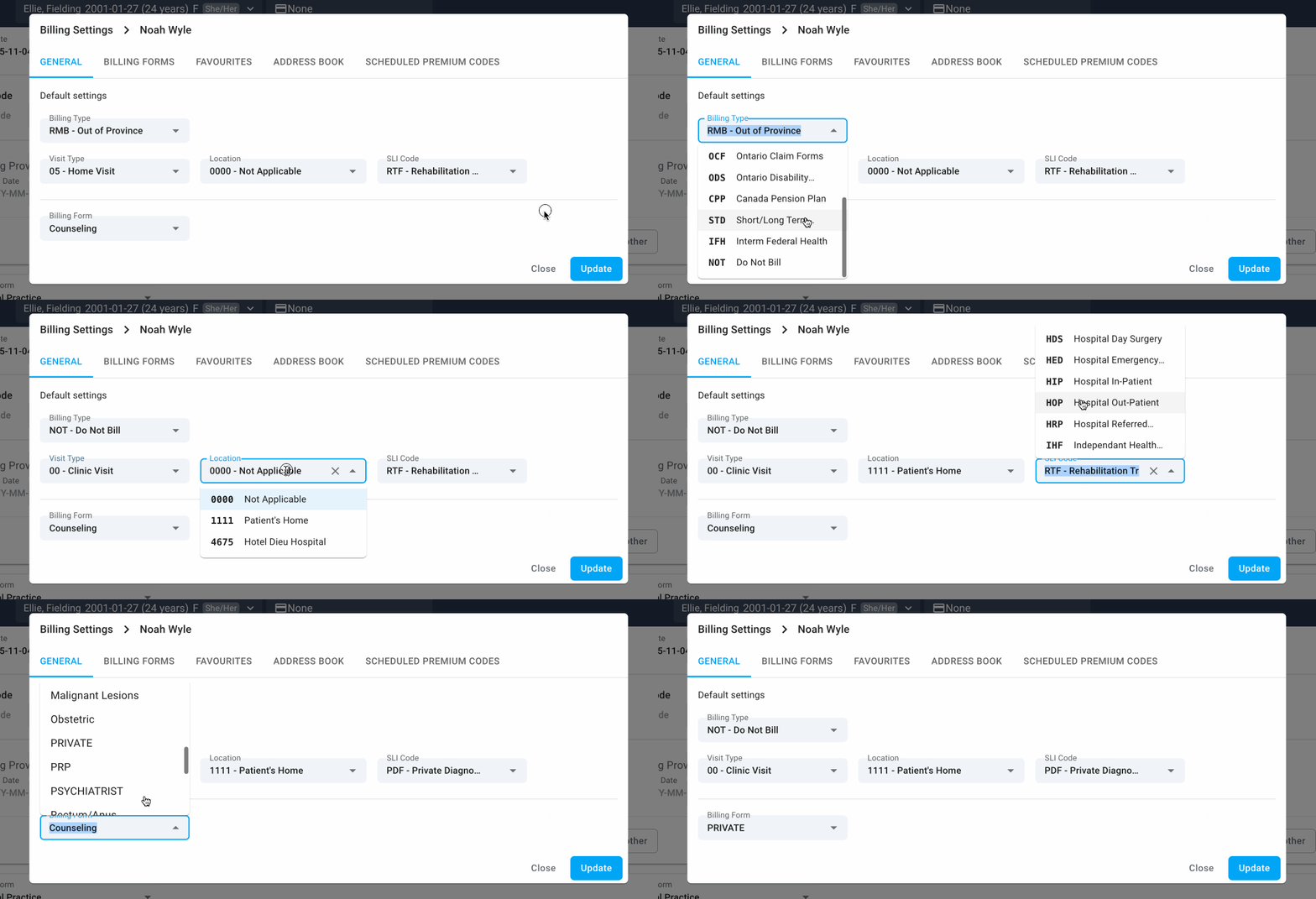
Default settings:
Billing Type
Determines which payer form opens for new invoices.
HCP (OHIP) • RMB • WCB • PAT • OCF • ODS • CPP / STD / IFH • NOT
Visit Type
Indicates where the service was provided.
Clinic • Hospital • ER • Long-term care • Home visit
Location Code
Specifies the facility where care was provided.
0000 Community office • 1111 Patient home
Hospital/facility codes vary by site (to add new locations see article here).
SLI Code (Service Location Indicator)
Shows the service location type.
NA Community • HDS / HED / HIP / HOP Hospital • OFF Physician office • OTN Telemedicine
Billing Forms
Select your default billing form. Learn more in the next section on creating and editing forms.
Billing Form Management
Within the Billing Form tab, you can edit existing billing forms or create a new one by selecting the New Billing Form button.
Editing an Existing Billing Form
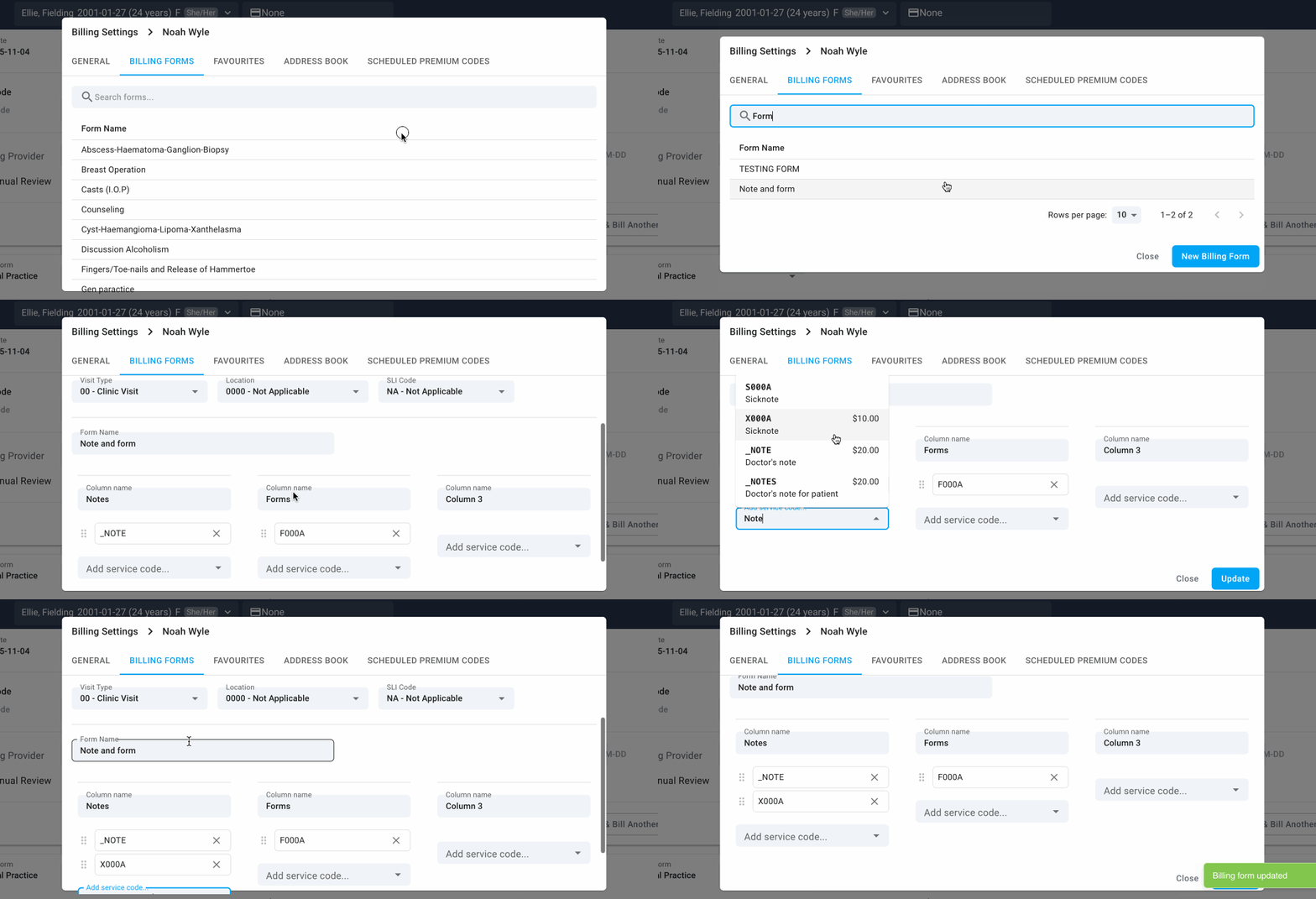
- Search and select the name of the form you want to adjust.
- You can update the following:
- Billing Type
- Visit Type
- Location
- SLI Code
- Form Name
- Column Names
- Adjust billing codes for each column by selecting the Add Service Code drop-down at the bottom of the column.
- Rearrange codes by dragging and dropping them. Click the space to the left of a code to move it within the column or to another column.
- Select Update to save changes made.
Creating a New Billing Form
- Select the New Billing Form button in the bottom-right corner of the Billing Form tab.
- On the next screen, enter the following information:
- Billing Type
- Visit Type
- Location
- SLI Code
- Form Name
- Column Names
- Add service codes to each column using the drop-down and typing in a code.
- Reorder codes by dragging and dropping them using the space to the left of each code.
- Select Update to save the new form.
💡Note: You must add a billing code to the column in order to add a Column Name💡
Favourites Management
Create and manage saved billing code combinations for frequently billed services to streamline invoice creation.
Update an Existing Favourite
- Search for the favourite using the search bar at the top.
- Select the favourite name you wish to modify.
- Make your changes:
- Edit the favourite name
- Add or remove service codes
- Add diagnostic codes
- Adjust units as needed
- Select Update to save changes.
Delete an Existing Favourite
- Search for the favourite in the search bar.
- Select the favourite name.
- Click the Delete button.
- Click Delete once more to confirm in the box that appears.
Add a New Favourite
- Click the New Favourite button in the bottom right.
- Assign a name for the favourite.
- Add service codes by searching in the drop-down menu.
- Enter units to the right of each service code.
- Click Create when finished.
Address Book
Manage Bill-To and Remit-To addresses for invoice processing. These addresses can be applied to invoices after selecting Save & Print on the completed invoice.
Add a New Bill-To or Remit-To Address
- Select the Bill To or Remit To option at the top.
- Click New Bill-To Address or New Remit-To Address button in the bottom right.
- Enter address details.
- Select Create to save.
Edit an Existing Bill-To or Remit-To Address
- Select the relevant option (Remit To or Bill To).
- Search for the address you wish to edit.
- Click on the address name.
- Adjust details as needed.
- Save changes by selecting Update.
Delete an Address
- Select the relevant option (Remit To or Bill To).
- Search for the address you wish to delete.
- Select the address you wish to delete.
- Click the Delete button in the bottom right.
- Click Delete once more to confirm in the box that appears.
Scheduled Premium Codes
Automate premium code application by creating rules based on day and time criteria. Rules apply clinic-wide to all providers.
⚠️ Important: This is a clinic-wide setting that affects all providers' invoices.
Update an Existing Rule
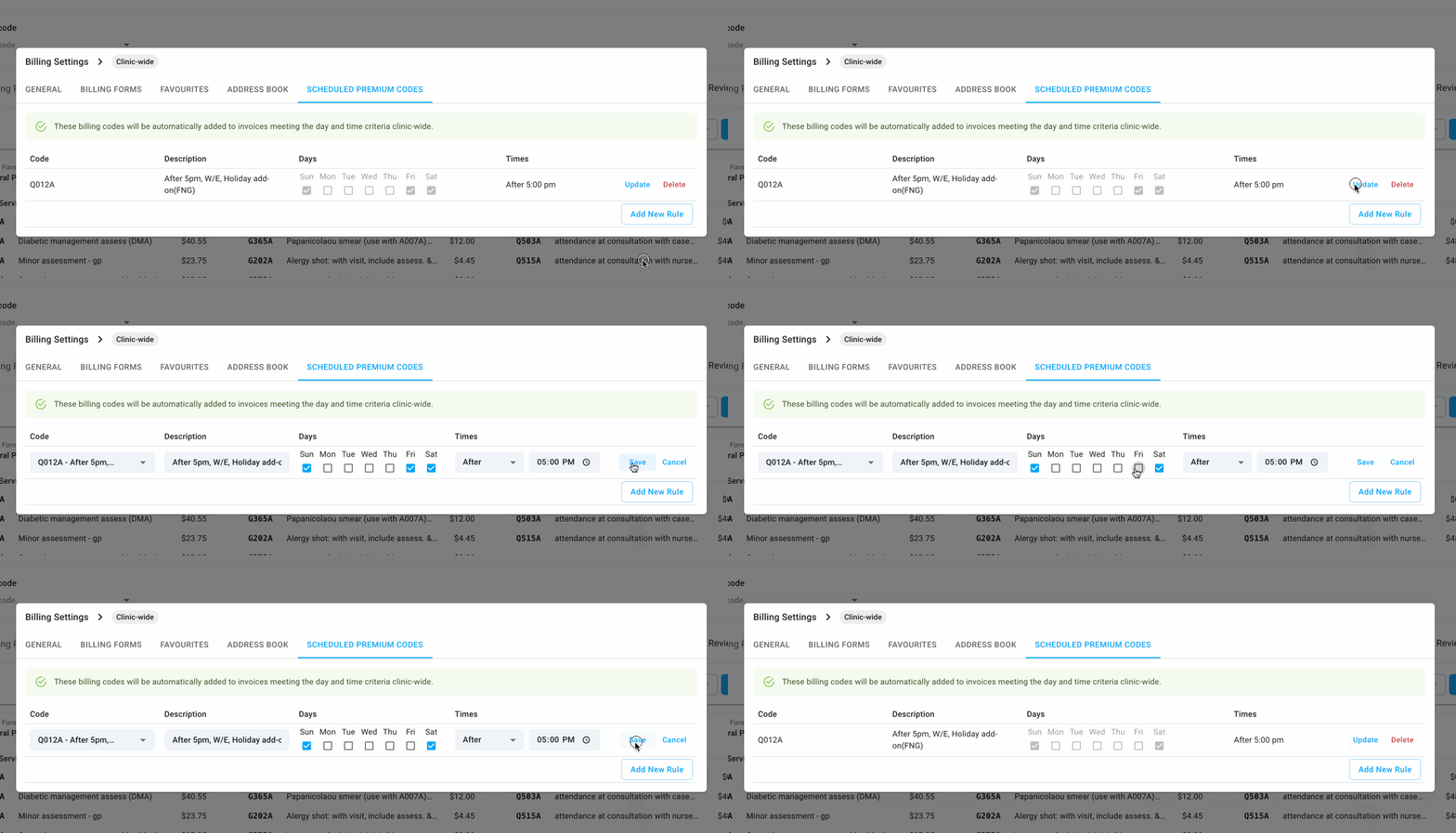
- Click the Update button next to the rule you wish to modify.
- Enter the new details.
- Click Save.
Delete an Existing Rule
- Click the red Delete button next to any established rule.
Add a New Rule
- Click Add New Rule in the bottom right.
- Enter the premium code in the drop-down box.
- Edit the description if required.
- Check the boxes for applicable days of the week.
- Set the time condition:
- Anytime - applies regardless of time
- Before - applies before a specified time
- After - applies after a specified time
- If using Before or After, enter the specific time in the field that appears.
- Click Add to create the rule.
💡Tip: Common premium codes include after-hours, weekend, and emergency visit premiums. Setting these as scheduled rules ensures consistent billing without manual entry.💡
Related Articles
Billing Submission, Error Correction and Reconciliation
Did we miss something? Not to worry! Just contact our support team here✌️
Comments
0 comments
Article is closed for comments.