This article walks you through creating your Go Secure (OPS BPS Secure) account, enrolling in MCEDT, designating your clinic to submit and manage billing on your behalf, and connecting your Go Secure credentials to Avaros. The steps below reflect the Ministry of Health's updated Electronic Business Services Enrolment (eBSE) site design.
Be sure to download the Billing Set-up Guide PDF attached to the bottom of this article as a reference to follow!
What is Go Secure?
Go Secure, now called OPS BPS Secure, is the official system used by the Ministry of Health to help physicians access and manage their billing claim permissions.
What is MCEDT?
Medical Claims Electronic Data Transfer (MCEDT) is the system that allows billing apps like Avaros to upload and download your billing claims. Access to MCEDT is managed through the Go Secure/OPS BPS Secure portal by a physician.
Step 1: Create a Go Secure Account
- Navigate to the Go Secure/OPS BPS Secure website here and select 'New User? Register'.
- Enter your personal details, email address, and create your password.
- Agree to the terms and select 'Register'. You will be taken to a 'Sign In' screen.
- Sign back in and enter the One Time PIN sent to your email, then select 'Submit'.
- Once your email verification is confirmed, select 'Continue'.
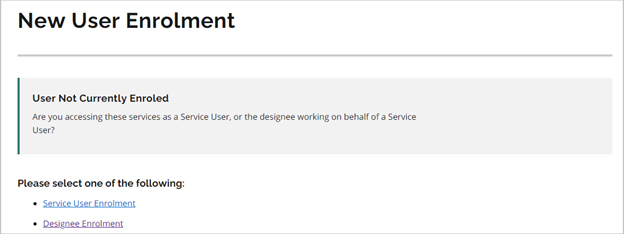
💡If your account isn't yet a designee of anyone and doesn't have a billing number attached, you'll be asked to choose between 'Service User Enrolment' and 'Designee Enrolment'. Providers enrolling themselves should choose Service User Enrolment. If you'll only ever act as a designee, for example a billing agent or clinic manager who won't submit under their own billing number, choose Designee Enrolment instead.💡
Do I already have a Go Secure account?
If you already have an account but can't remember your username or password, select 'Forgot Password?' on the login page.
If you've forgotten both the ID and password, call the Ministry billing desk at 1-800-262-6524. They can confirm which email is attached to your account so you can reset the password.
Step 2: Enrol in MCEDT (Providers Only)
MCEDT is what lets Avaros upload and download your claims. Enrol from inside Go Secure once your account is live.
- Sign back in and choose 'New Service User Enrolment' from the drop-down, then select 'Continue'.
- Enter the two Unique ID #'s the Ministry emailed you, then select 'Continue'.
- Select 'Accept' on the terms of use.
Step 3: Designate the Clinic Account (Skip if Each Provider Submits Alone)
To submit every provider's billing from one Avaros account, each doctor designates the clinic's Go Secure account. There are 3 parts to this, split across the doctor and the clinic:
Doctor: Add Designee
- Log in to your Go Secure/OPS BPS Secure account here.
- Select 'Continue', then 'Designee Maintenance'.
- Select 'Add Designees'.
- Enter the designee's name and email address.
- Select 'Save'.
- If the designee already has an OPS BPS Secure account, you'll be asked to confirm. Select 'Confirm'.
A system-generated email confirming the addition will go to both you and your designee.
Clinic: Accept
- Open the OPS BPS Secure email sent to the clinic's Go Secure account.
- Sign in.
- Accept the designation.
Doctor: Authorize
- Log back into your Go Secure/OPS BPS Secure account once the designee has accepted. Select 'Continue', then 'Designee Maintenance'.
- Select the designee's email address.
- Select 'MCEDT Service (Upload/Download)'.
- Check off all reports and activities you want the designee to access (generally select all).
- Select 'Save'.
Step 4: Enter Your Go Secure Credentials in Avaros
Within Avaros navigate to Administration › Billing › Manage Go Secure
Add the clinic's Go Secure username and password, the main billing account, and each linked provider using the Add Account button.
Not seeing a provider or Group Billing number to select? Ensure each provider's billing number is entered into Avaros under Administration › User Management › Manage Users › provider › Billing Information.
Turn on 'Enable Automated MCEDT File Downloads', choose who gets notified of download errors, then select 'Update'. This step is optional, but it automates the file exchange: generated claim files upload to MCEDT once created and MOH files download into View MOH Files on their own. Leave it off and you upload and download manually each cycle through the MCEDT Mailbox.
Go Secure and Group Billing vs. Individual Billing
A group billing number can also be used to sign up for a Go Secure account. Group billing can be useful in cases where there are multiple providers practicing at a clinic but also practicing at other locations. This is usually the case for walk-in clinics. It would be useful because:
- Go Secure will send reports (batch edits, error reports etc.) only attached to the clinic's single location, not ones from the other locations the providers practice at. In individual billing, the received reports will be from all locations the individual providers practice at.
- You will receive reports for your providers altogether in a single file. In individual billing, reports would receive files separated by the provider.
- A group billing number is attached to a single bank account. For individual billing, each registered provider will be linked to their own bank account.
It would be up to the clinic to choose which billing method they would prefer. If you would like to sign up for a group billing number, you can complete the form from the MOH site linked below.
OHIP Group Registration for Health Care Professionals
Related Articles
Why does it say "Failed" when I use my MCEDT Mailbox?
Billing Submission, Error Correction and Reconciliation
Configuring Your Billing Settings
Did we miss something? Not to worry! Just contact our support team here✌️
Comments
0 comments
Article is closed for comments.