The invoicing screen is where you create, review, and manage billing for your patients. Use this article to familiarize yourself with each section and how it works.
Starting a New Invoice
You can create an invoice in three ways:
- Click the patient’s initials in the top-right of the eChart, then select Billing.
- Select the B button from a booked appointment.
- Click Create Invoice on the left-hand side of the patient’s master record.
The invoice screen will open with all fields and options ready to use.
Patient Banner
The top of the invoice displays a Patient Banner showing key details: name, date of birth, age, sex, address, and health card number. You can validate the health card directly from this screen.
Setting Up Billing Defaults
The invoice includes standard fields such as service date, location, billing provider, billing type, referring provider, visit type, and SLI code.
The first time you use the invoicing screen, you will need to set your default selections:
- Click Go To Settings on the orange pop-up in the bottom-right corner.
- Select your default Billing Type, Visit Type, Location, SLI Code, and Billing Form from the drop-down menus. Click Update to save.
Once saved, your defaults will apply automatically to new invoices going forward.
Adding Service Codes
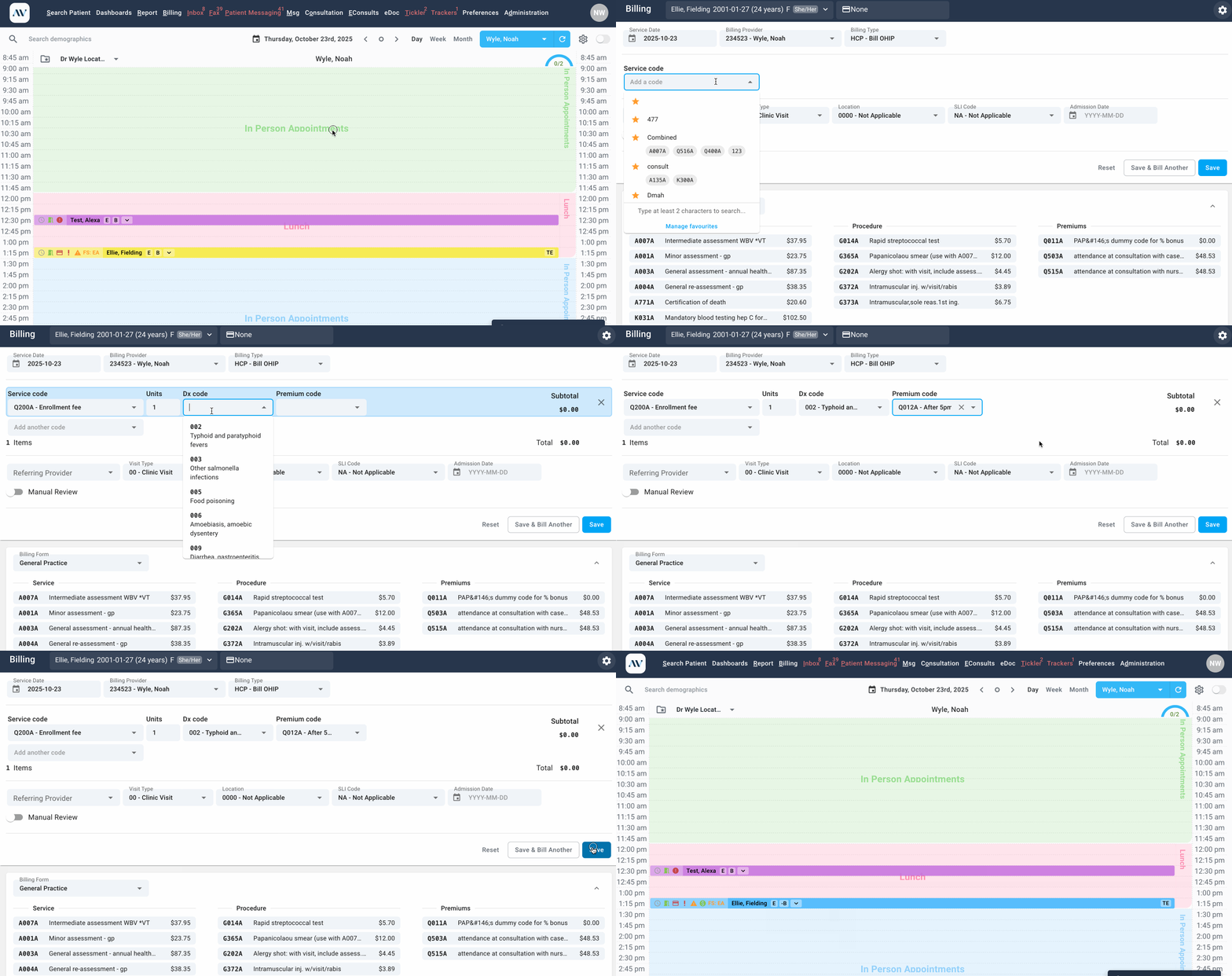
Your favourite codes appear at the top of the list, individually or grouped, based on your invoice settings.
Each code displays as its own line item, allowing you to:
- Adjust units
- Link diagnostic codes
- Attach premium codes to specific services
To manage your favourites, address book, billing forms, and scheduled premium codes, click the settings gear in the top-right corner of the invoice screen.
Adding Two Premium Codes To A Single Service Code
You can link more than one premium code to a service on a single invoice (maximum of 2 per line item).
- Add your first premium code to the service line to the right of the Dx code.
- Click the + icon next to the premium code code field.
- A new premium code field will appear to enter your next code.
Saving and Submitting
The full billing process now happens on one screen. You can review, edit, and save without navigating through multiple windows. Once saved, the related appointment is automatically marked as billed.
Reviewing Billing History
The Billing History section has improved filters to help you quickly find past invoices. You can search by:
• Service code
• Billing status such as O - Bill OHIP, P - 3rd Party B - Submitted OHIP , or S - Settled
• Service date range
Multiple filters can be combined to narrow your search. Each entry shows billed amount, paid amount, outstanding balance, and any notes. Click any record to open and review the invoice.
Related Articles
Billing Submission, Error Correction and Reconciliation
Configuring Your Billing Settings (New Invoice Release)
Did we miss something? Not to worry! Just contact our support team here✌️
Comments
0 comments
Article is closed for comments.