The Medications module is where you review a patient's drug history, write and sign prescriptions, and send them to the pharmacy. This article walks you through the new Medications screen, which opens from the same places you're already used to.
Opening a Patient's Medications
You can open a patient's medications in two ways:
-
From the schedule: open the appointment's drop-down menu and select Rx.
-
From the eChart: select Medication.
The screen is divided into three areas:
- Header: the patient's name, sex and age, their preferred pharmacy, the Activity log button, and the DHDR button, which opens the Digital Health Drug Repository viewer for the patient.
- Side panel: Allergies, Drug Interactions, Favorites, Renal Function and Past Medical History. You can collapse each section, or select Close side panel to hide the whole panel.
- Drug history: the patient's medications, organized into Current drugs, Past drugs, All drugs and Prescriptions tabs.
Above the drug history you'll find the search bar, where you look up a drug to prescribe, and the Drug history / Prescription switch, which moves you between the patient's history and the prescription you're writing. The number beside Prescription shows how many drugs are waiting on it.
The Drug History Table
Each row shows the drug, the days left on the prescription, its type and the prescriber. Long-term medications show Ongoing, and a prescription shows Expired once its end date has passed. Open the three-dot menu at the end of any row to Edit, Re-prescribe, Add to favorites or Discontinue.
Use the filters above the table to sort by date, show a single prescriber, or show only long-term, acute or discontinued drugs. The search box looks through the patient's own list. Select the three dots next to the search to view the following options:
- Print Drug List: prints the list as it's currently shown.
- Drug Time-Line: a chart of the patient's medications over time. You can overlay HbA1c, blood pressure, weight, creatinine and heart rate readings to compare them with the drug history, then print the chart.
- Clear all filters: resets the table to its default view.
💡 Your filters stay in place even if you refresh the page.💡
Renal Function
The Renal Function section shows the patient's latest creatinine and weight, along with their creatinine clearance (CrCl), colour-coded green, orange or red. If no CrCl has been recorded, Avaros estimates it from the patient's latest creatinine, weight, age and sex.
Filling New Prescriptions
- Type at least three letters of the drug name into the search bar at the top of the screen. Each result shows the drug name, its DIN, and an LU badge if it's an Ontario Limited Use drug.
- Select the drug to add it to the prescription. If the drug you need isn't listed, choose Add custom medicine at the bottom of the results.
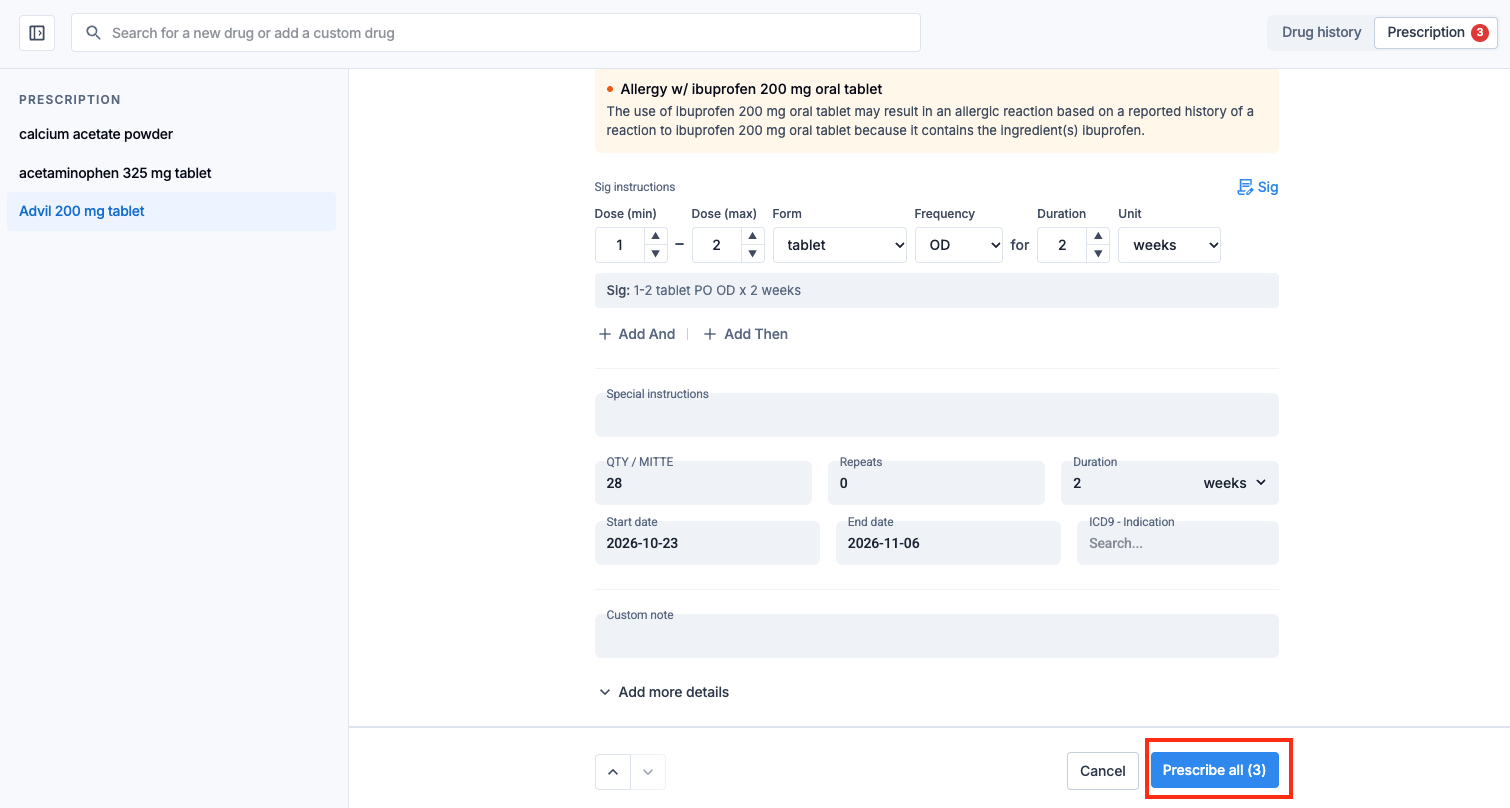
- Repeat for any other drugs that belong on the same prescription. Each one is added as its own card on the Prescription screen.
Next, fill in the instructions on each card. You can type them as free text in the Sig instructions box, or select Switch to builder to choose the dose, form, frequency and duration from lists. The builder also lets you add a second step with Add And or Add Then, such as a loading dose followed by a maintenance dose.
- QTY / MITTE and End date are calculated for you from the instructions and duration. You can overwrite the quantity if needed.
- Set the Repeats, Start date and any Special instructions for the pharmacy.
- For a Limited Use drug, choose the Limited Use Code on the card.
- Select Add more details to add pharmacy notes and dosage form details.
- Tick Long-term if the patient will be staying on the medication.*****
⚠️ If the drug interacts with another of the patient's medications or matches one of their allergies, a warning appears on the card. Warnings won't stop you from prescribing, so please review them carefully before you continue.⚠️
Once every card is complete, select Prescribe all.
Reviewing, Signing and Sending
The review window shows the prescription exactly as the pharmacy will see it. On the right, confirm the preferred pharmacy, add a prescription note if needed, and sign in the Signature box. Then choose one of the following:
- Save & fax: saves the prescription to the chart and faxes it to the preferred pharmacy. The prescription must be signed, and the pharmacy must have a fax number on file.
- Save without faxing: saves the prescription to the chart only. You can print or fax it later from the Prescriptions tab.
💡 Prescriptions can be saved unsigned. This lets a nurse prepare a prescription for the prescriber to sign later: just open it from the Prescriptions tab, sign, and send.💡
💡 If your clinic requires a PIN for signatures, you'll be prompted for it when you sign.💡
⚠️ If you see Saved, but the fax could not be sent, the prescription is already in the chart. Resend it from the Prescriptions tab instead of writing it again.⚠️
Re-Prescriptions and Long-Term Medications
Long-term medications are ones the patient will keep taking, typically for more than three months. The Type badge on each row of the drug history shows whether a drug is Acute, Long-term or Discontinued. To change it, click the badge and confirm.
There are a few ways to re-prescribe:
-
All long-term medications: select ReRx Long-Term Meds at the top of the drug history. Every long-term drug is added to the prescription, ready to review and send.
-
One drug: open the row's three-dot menu and select Re-prescribe.
-
Several drugs: tick the boxes beside them, then select Re-prescribe from the bar that appears.
-
A whole past prescription: on the Prescriptions tab, use the Re-prescribe or Reprint button beside it.
Re-prescribed drugs open on the Prescription screen with their previous instructions already filled in. Review them, select Prescribe all, then sign and send. The earlier prescription stays in the patient's history.
💡 Re-prescribe is only available for drugs prescribed in Avaros. If a drug was only recorded in the history (for example, prescribed elsewhere), add it from the search bar instead.💡
💡 Reprint prints the prescription exactly as it was signed. Your clinic can limit how many times a prescription is reprinted, and the Reprint window shows who printed it before and how many reprints remain.💡
Editing or Discontinuing a Medication
To update a medication's instructions, quantity, repeats or dates without writing a new prescription, open the row's three-dot menu and select Edit.
⚠️ If you change the instructions, the pharmacy will need a new prescription. The Edit window will remind you.⚠️
To stop a medication, select Discontinue from the same menu, or tick several drugs and select Discontinue from the bar. Choose a reason (adverse reaction, no longer needed, dose change, change to another drug in the same class, or other) and add a comment if you'd like. Discontinued drugs move to the Past drugs tab.
Allergies and Interaction Checks
The Allergies section lists the patient's allergies and their severity. Select + to add a new one, or click an existing allergy to edit or delete it. You can set the type, onset date, severity, and whether it was an allergy or an adverse reaction.
💡 For drug allergies, search for the drug by name and select it from the list. This lets Avaros check it against new prescriptions. A drug typed in manually is recorded, but won't be checked automatically.💡
The Drug Interactions section shows interactions between the patient's current medications, and between their medications and allergies, with the most serious listed first. These warnings are there to inform your decision and won't block a prescription.
Pharmacy Settings
A patient needs a preferred pharmacy before prescriptions can be faxed. The pharmacy shown in the header is where prescriptions will be sent. Open its drop-down to switch between the patient's linked pharmacies, change their order, or Unlink one.
To link a new pharmacy, select Manage pharmacies and search your clinic's pharmacy list. If the pharmacy isn't there, select View All Pharmacies and then + Create Pharmacy and enter its name, address, phone and fax number. Pharmacies you create are available for every patient in your clinic.
💡 Linked pharmacies appear in the drop-down in the order you set.💡
Favourite Medications
Favourites are your personal shortcuts for drugs you prescribe often, saved with their instructions. To add a favourite, either:
- Open the three-dot menu on a drug in the history and select Add to favorites, or
- Select the star on a prescription card while you're writing it.
Your favourites appear in the Favorites section of the side panel. Click one to add it to the prescription with the instructions already filled in.
Activity Log
Select Activity log in the header to see a history of everything that's happened with the patient's medications, including prescriptions written, signed, reprinted and faxed, and drugs added or re-prescribed. You can filter by Prescriptions, Faxes or Drugs, and click a prescription to see which drugs were on it along with a preview of the signed copy.
Related Articles
Did we miss something? Not to worry! Just contact our support team here✌️
Comments
0 comments
Article is closed for comments.